It is important that you eject your phone before disconnecting the USB cable. If this is not done then it can cause corruption of the phone memory.
The exact procedure for ejecting the phone is different depending on which version of Windows you are using.
Windows XP
To eject your phone from Windows XP, click on the following icon:
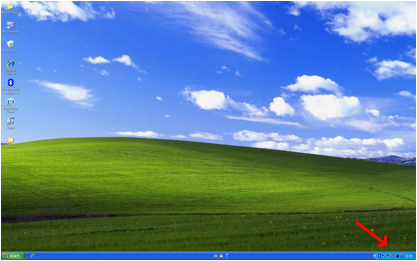
After clicking on this icon you will be presented with a list of devices that you can eject. Select your phone from this list.
If Windows displays a message saying that the phone cannot be ejected then close all applications and try again.
Windows Vista
To eject your phone from Windows Vista click on the following icon:
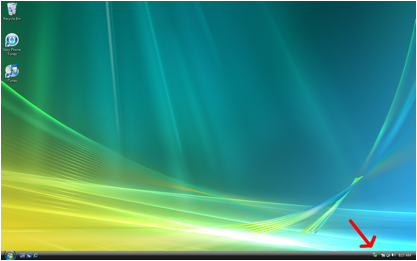
After clicking on this icon you will be presented with a list of devices that you can eject. Select your phone from this list.
If Windows displays a message saying that the phone cannot be ejected then close all applications and try again.
Windows 7
To eject your phone from Windows Vista click on the following icon:
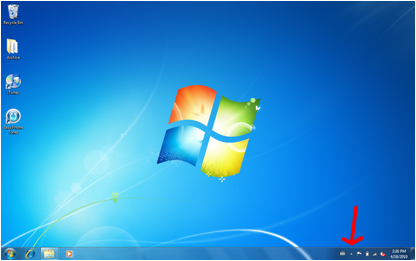
After you have clicked the above icon, click on the following icon:
ou will be presented with a list of devices that you can eject. Select your phone from this list.
If Windows displays a message saying that the phone cannot be ejected then close all applications and try again.
Mac OS
To eject your phone from a Mac, find the drive on your desktop that corresponds to the memory card for your phone. This is often labeled either “NO NAME”, “UNTITLED” or similar but it could be different depending on your memory card. The diagram below shows what a drive looks like on your desktop:
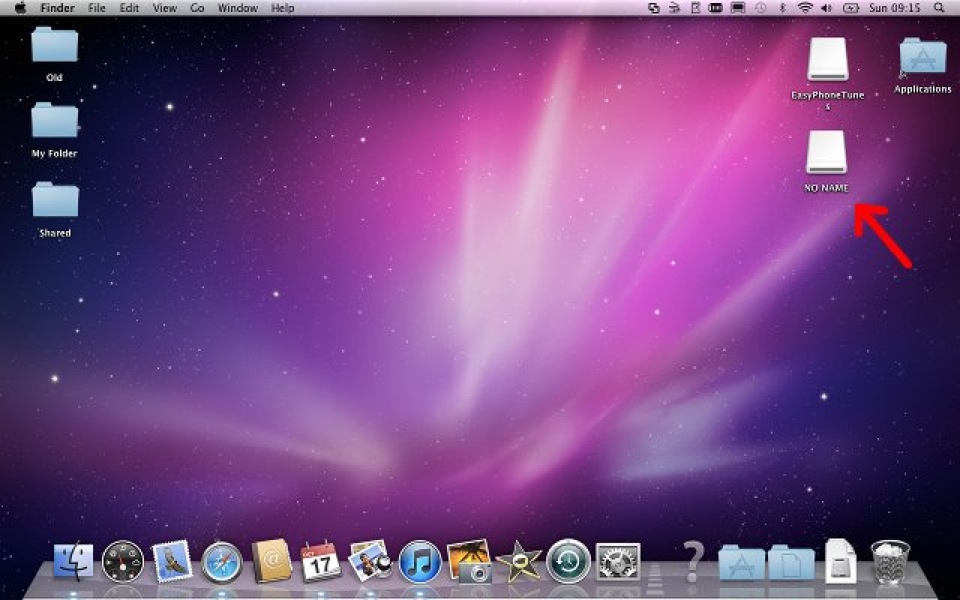
Once you have identified the drive for your phone, drag it to the bottom right of your desktop. The trash can icon should now have changed into the eject icon (see below):
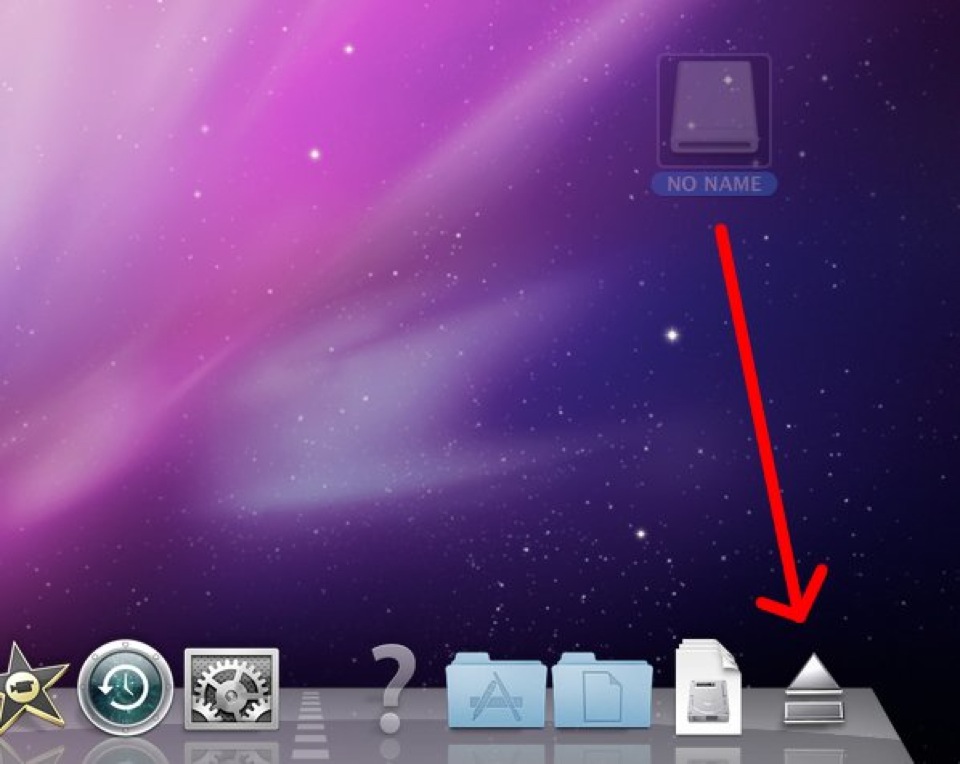
Continue dragging the drive to the eject icon. Once the drive has been ejected it is safe to disconnect your phone.
